
Export
The Export section in Audience allows you to select and download your contacts as a .csv file onto your device.
Follow the steps below to export your contacts:
-
Navigate to the Exports tab.
-
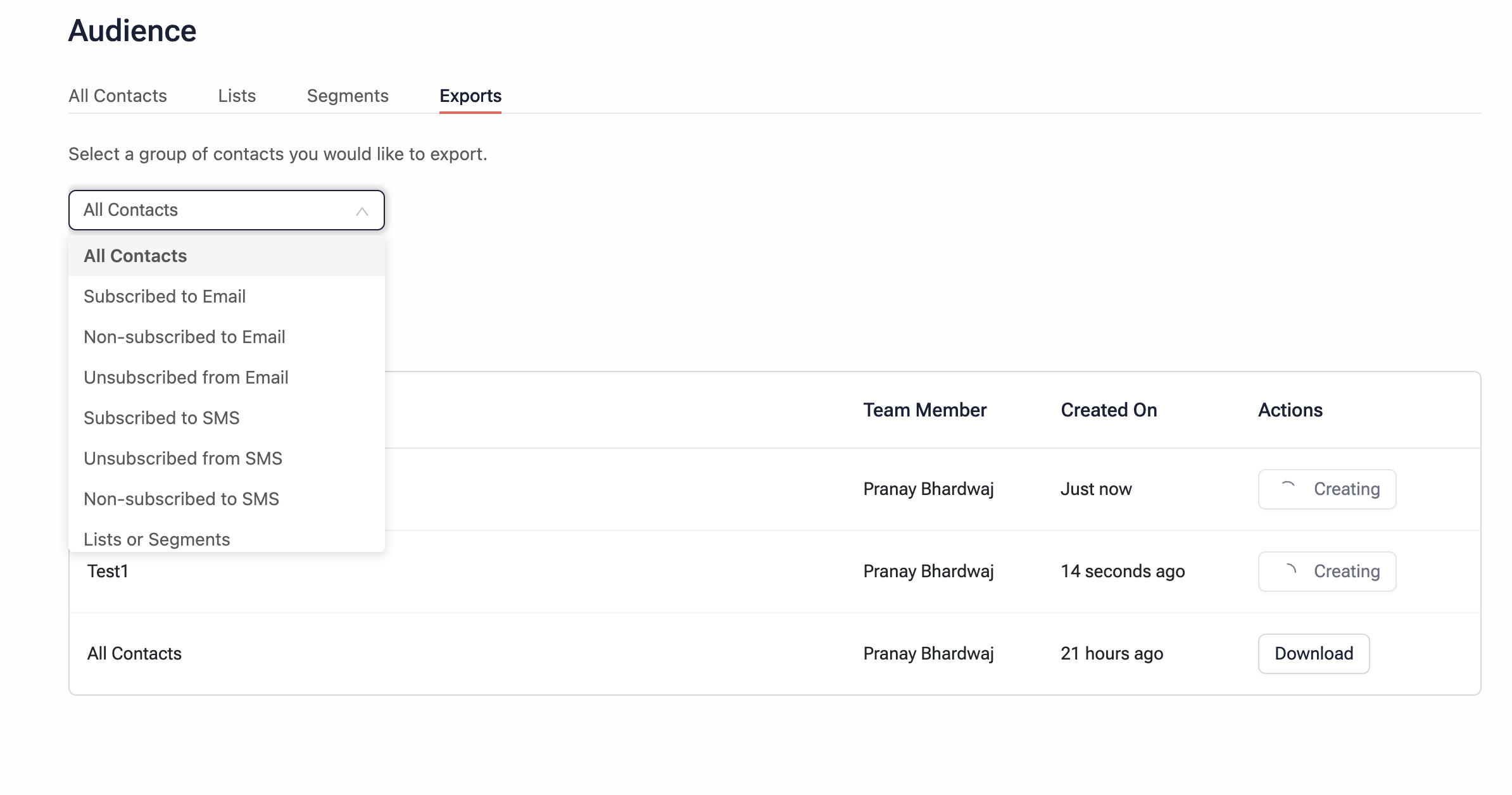
Choose the group of contacts you wish to export from the Select a group of contacts you would like to export dropdown. Available options include:
-
All Contacts: Exports the contacts present in the All Contacts section.
-
Subscribed/Unsubscribed to a Channel: Exports contacts subscribed/unsubscribed to a specific channel (e.g., Email).
-
Lists/Segments: Exports contacts from a selected List or segment created in SuperAGI Marketing.
-
-
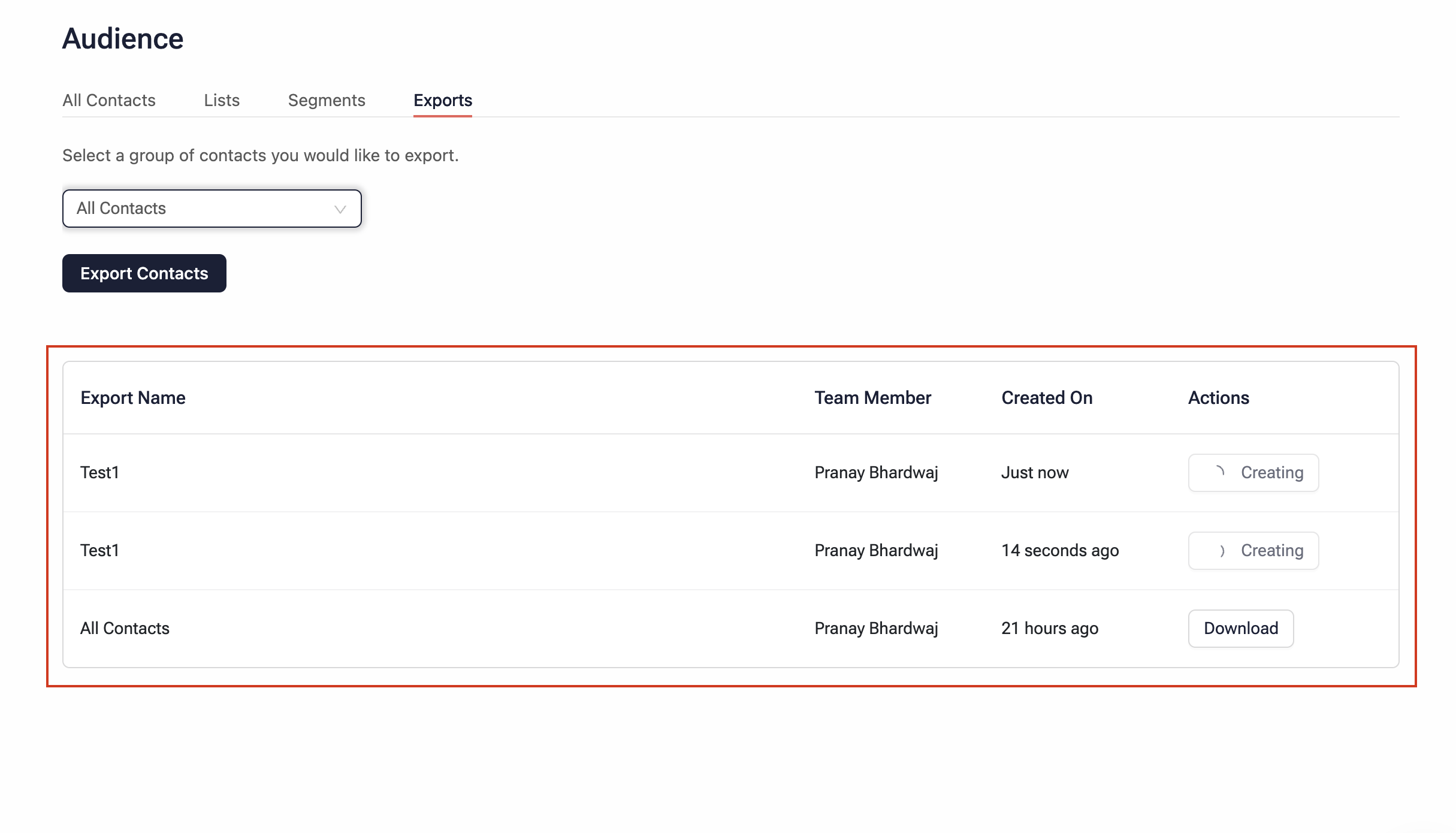
Click Export Contacts to initiate the .csv file generation. The export details will be displayed in the table below. Allow 2-3 minutes for the .csv file to be created.
-
Once the file is successfully created, click the Download button to save the .csv file to your device.
Updated about 1 year ago